Start
Upload one clear avatar screenshot.
 MCSkinGen
Use a Roblox avatar screenshot as a reference for a Minecraft skin.
Open the tool ↗Use a Roblox avatar screenshot as a reference for a Minecraft skin.
The AI uses your image for visible details and infers the sides and back. Review the 3D preview and refine any details before downloading.
Private by default. Unseen sides are inferred. Check the result and your device before using it in game.
Your generated skin will appear here. You can rotate it, refine pixels, and export the same texture.
The generator interprets the screenshot as a visual reference and adapts the avatar to Minecraft’s fixed character geometry.
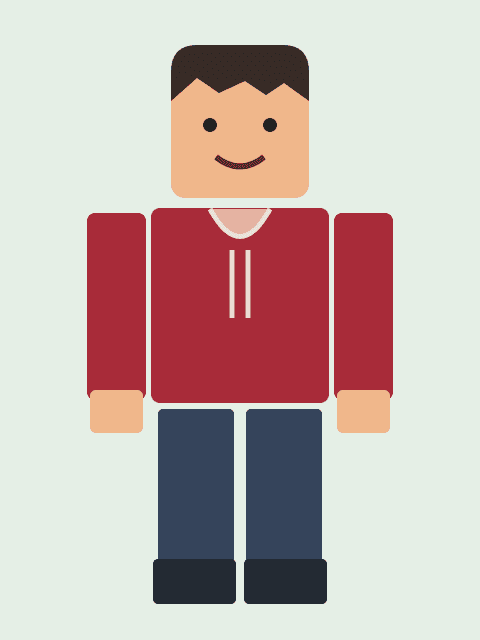
A front-facing screenshot of an avatar with a red hoodie and dark hair makes the main colors and outfit easy to see.
Upload one clear avatar screenshot.
Review the credit quote and confirm generation.
Inspect the result, refine pixels and download the skin PNG.
Roblox to Minecraft skin uses a screenshot of a Roblox avatar as a visual reference for a Minecraft skin. This page accepts one image; it does not connect to Roblox, retrieve an account or require a password. Use a clear, front-facing view of one avatar with its head, clothing, arms and legs visible. Crop away unrelated characters and interface elements when possible, while keeping the full outfit in frame. Upload a JPG, PNG or WebP no larger than 12 MB that you are allowed to use.
The generator interprets the image and maps recognizable colors and clothing onto Minecraft’s fixed skin texture. The two games do not share identical body geometry: large hats, layered accessories, unusual proportions and tiny logos may be simplified or omitted. The back and other hidden surfaces must be inferred. Treat the result as an adaptation, not a direct asset transfer or a guaranteed exact copy.
Upload the reference image, review the displayed credit quote and confirm generation when ready. This streamlined page creates a Classic-arm skin. Processing can take time and repeated requests may produce different results. Once the job finishes, rotate the character preview and compare the face, clothing, sleeves and legs with your reference. Use the skin editor for details that need correction; if you need Slim arms, convert the resulting Classic PNG and inspect its seams.
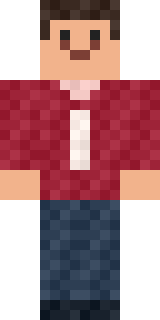
The example below uses an original block-character illustration and a real skin generated by the same vision adapter. The reference is a demonstration, not an actual Roblox screenshot, so it does not establish accuracy for every Roblox avatar. Download the resulting skin PNG, check its pixels and test the final file in the intended Minecraft game and device. A browser preview or a valid file is not proof of game import compatibility.
Use an avatar image you own or have permission to use, especially before publishing or sharing the result. The image is sent for generation; your project is private by default and publishing is a separate action. A written description is optional on this page. The quote shows the cost before confirmation; failed and uncertain upstream results are different states, so follow the displayed status instead of repeatedly submitting new paid jobs.
If the file is rejected, verify the format, size and that the image can be opened. If the output misses a detail, try a clearer reference or adjust the pixels manually; a second generation is a new request and can differ. The PNG is a Minecraft skin texture, not a Roblox outfit, and it will not transfer Roblox items or account ownership. Keep the original image and your edited skin as separate files.
An original illustration, not a Roblox screenshot, processed with the same vision adapter.
No account connection or password is required.
Large or complex accessories may be simplified to fit Minecraft’s skin geometry.
This page uses a single image; a written description is not required.
