Describe your character
Write the outfit, colors and features you want in the description box. No image is required.
 MCSkinGen
Describe the character you imagine and generate a Minecraft skin from your words. No reference image is needed.
Start creating ↗Describe the character you want to create.
Private by default. Unseen sides are inferred. Check the result and your device before using it in game.
Your generated skin will appear here. You can rotate it, refine pixels, and export the same texture.
A text description gives the generator a starting point for your character. Mention the clothing, colors, hair and details that matter most, then refine the resulting pixels in the editor.
An explorer with an olive-green jacket, cream shirt, brown boots and a red scarf. Give them short dark hair and a practical adventure outfit.
Write the outfit, colors and features you want in the description box. No image is required.
Review the credit quote and confirm to start generation. Your project is private by default.
Inspect the result in 3D, edit the pixels if needed, and download the skin PNG.
Text to Minecraft skin starts from a written character description, with no reference image required. Describe the main outfit and colors first, then add useful details such as hair, footwear and a theme. For example, a woodland ranger in a moss-green tunic, brown boots and tan hood gives clear direction without asking the small pixel canvas to reproduce an elaborate scene.
The description guides generation but is not a precise drawing specification. Small accessories or complicated patterns may be simplified or interpreted differently. Review the character from the front, sides and back, then edit specific pixels if a sleeve, face or color needs adjustment. A more focused description can be easier to interpret than a long list of conflicting details.
These streamlined tools create a Classic-arm skin. Review the quoted credit cost and confirm only when you are ready to generate. A completed job provides a skin PNG and a preview; generation may take time and the result can differ between runs. Review the result before saving or using it. A failed request and an uncertain upstream result may need different handling, so follow the status shown instead of repeatedly starting new paid jobs.
Open the resulting skin in the editor to refine pixels, check its file and download the PNG. Your generation project is private by default; publication is a separate action. A valid file or browser preview does not guarantee that a particular game or device imports it correctly, so test the final skin in your intended client. The examples on this page are individual results, not a promise that every request will look the same.
An individual generated result; your result may differ.
A woodland ranger in a moss green tunic, brown leather boots and a tan hood, with a small belt pouch.
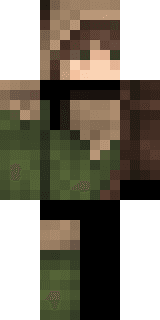
Start with the character’s outfit and main colors, then add hair, accessories or a theme. Specific details give the generator more direction.
No. This tool creates a skin from your written description without a reference image.
Not necessarily. Minecraft skins use a small pixel canvas, so the generator may simplify details. You can refine the result in the editor.
Yes. You can inspect the result, open it in the pixel editor and download the skin as a PNG.
