Start
Open a 128×128 PNG or start from the HD editor.
 MCSkinGen
Edit an independent 128×128 skin texture and export its original resolution.
Open the tool ↗Edit an independent 128×128 skin texture and export its original resolution.
128×128 RGBA · 0 undo steps · local draft saved in this browser
HD is a separate 128×128 texture. Client compatibility still requires game import verification.
The preview and PNG export share one texture. Poses only affect avatar images.
The HD editor provides a larger pixel canvas with layers and a 3D preview. Game-client compatibility for HD skins varies and requires verification.
Open a 128×128 texture and paint small costume details while retaining the original resolution.
Open a 128×128 PNG or start from the HD editor.
Paint pixels and inspect the character preview.
Download the 128×128 PNG and check it in your target client.
The Minecraft skin editor lets you paint a skin texture pixel by pixel and inspect it on a rotatable 3D character. The standard editor works with 64×64 PNG textures; the separate HD editor works with 128×128 PNG textures. Open a file at the matching resolution or start from the editor’s template. The flat texture and the character preview represent the same underlying pixels, so a change on the texture can be checked from several angles.
Choose the arm model that matches your skin: Classic arms are four pixels wide in the standard layout and Slim arms are three. Switching the model changes how the texture is interpreted; it does not convert the file’s arm layout. Use the skin converter when you need an actual remapping, then inspect the seams. A 128×128 HD texture is not a standard 64×64 skin and compatibility depends on the intended client.
Select a color and use the brush, fill, eraser or color picker. Work on the base or outer layer and use the grid to locate individual pixels. Required base faces must remain opaque; the eraser protects the base layer. You can hide parts to inspect the preview or lock parts to avoid painting them. Undo and redo help you explore changes before exporting. The standard editor also supports drawing on the 3D model; direct 3D painting is unavailable in the HD editor.
Rotate the 3D preview to check the front, back, sides and joins. Download PNG exports the texture at the editor’s resolution; it is not a rendered profile picture. Local drafts are stored in this browser, and saving a cloud version requires an account. Pixel editing itself does not use AI generation credits. For a profile picture with a pose or crop, open the saved skin in the PFP maker.
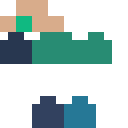
The example below shows a color-coded Classic teaching texture before and after using the fill tool on one head face in this editor. The resulting PNG was actually exported; the colors are instructional, not a finished character design. Download the source and repeat the edit, then use undo or choose another color. The example demonstrates a single face, so rotate the preview and check the other faces before calling a design finished.
If an imported PNG is rejected, check its dimensions and use the editor for the matching resolution. A legacy 64×32 texture should first be converted to the modern layout rather than stretched. After editing, inspect transparency with the skin file checker and test import in your intended game and device. HD support varies, and neither a valid PNG nor a browser preview proves that a particular client will accept it.
One head face of this Classic teaching template was filled and exported in the editor.

No. This editor works with a separate 128×128 texture.
Client compatibility varies; verify import on the intended game and device.