Classic UV template
Color-coded learning template for the head, body and limbs.
Download PNG MCSkinGen
Download color-coded Classic and Slim Minecraft skin templates.
Open the tool ↗Download color-coded Classic and Slim Minecraft skin templates.
Color-coded learning template for the head, body and limbs.
Download PNGColor-coded learning template for the head, body and limbs.
Download PNGThe templates mark skin texture regions with colors so you can identify the head, body and limbs while learning the UV layout.
Download the Classic template to find the locations of the arm and body faces before painting.
Choose the Classic or Slim arm model.
Download the matching template PNG.
Open it in a skin editor and replace the guide colors with your design.
Minecraft skin templates are flat PNG texture maps that show where the head, body, arms and legs are painted. The colored guides on this page mark the base-layer faces of each body part. They are a starting point for learning the layout, not a finished character or an image that automatically turns a drawing into a skin. Both downloads are 64×64 PNG files; areas outside the painted base faces are transparent.
Choose the template that matches your character model. Classic uses arms four pixels wide; Slim uses arms three pixels wide. The arm faces occupy different areas in the texture, so choosing the right template helps avoid distorted or misplaced arm details. The colors help you distinguish regions; replace them with your own pixels as you design.
Download the Classic or Slim Minecraft skin template above and open the PNG in the skin editor using Open PNG. Select the same arm model in the editor. Start with the base layer and paint the face, clothing and limbs one region at a time. Rotate the 3D preview to see how the flat faces join on the character; check front, back, sides, top and bottom before adding details.
You can use the outer layer for details such as a jacket or hat. Transparent pixels leave parts of that layer empty; keep required base faces opaque. Export the result as PNG, inspect it with the skin file checker, and test it in your intended Minecraft client. Keep your source copy if you want to return to an earlier design. Local editing does not require AI credits; saving a cloud version requires an account.
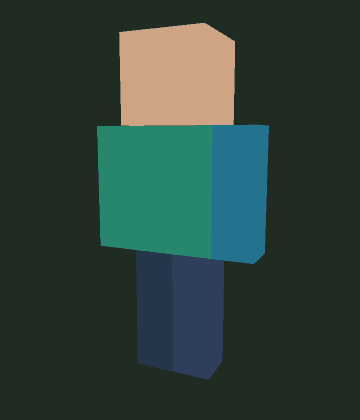
The example below shows the actual Classic template opened in the editor and viewed on its 3D character. The flat colors become the corresponding head, torso and limb surfaces; they are deliberately simple teaching colors. You can reproduce the example by downloading the Classic file and opening it in the editor. The preview illustrates the template itself, not a finished skin or an independently verified game import.
If an arm looks wrong, check the selected model first. Changing the selected model does not automatically redesign the arm texture; use the skin converter if you need to remap an existing skin and inspect the result afterward. Do not resize a 64×64 template with a smoothing filter: blended pixels and partial transparency can cause unwanted results. For an older 64×32 skin, use the converter’s legacy option instead of stretching the image.
The downloaded template, shown in the editor before any painting.

Classic arms are four pixels wide; Slim arms are three pixels wide.
They are guides for learning the texture layout. Replace them when creating your design.