Start
Open your skin PNG and select its arm model.
 MCSkinGen
Turn an existing Minecraft skin into a character avatar image.
Open the tool ↗Turn an existing Minecraft skin into a character avatar image.
Choose a pose and framing, then download your avatar image.
Use your skin texture to render a character image. Poses and framing affect the avatar image, while the underlying skin remains the source texture.
Load a skin, choose a pose and framing, then render an image for a profile picture.
Open your skin PNG and select its arm model.
Choose the avatar pose and framing in the preview.
Export the rendered avatar image.
The Minecraft PFP maker renders an image from an existing Minecraft skin. It wraps the uploaded texture around a 3D character, so you can choose a pose and framing for a profile picture. The exported avatar is a square PNG image, not a wearable skin file. It does not generate a new face or change the source texture: keep the original skin PNG for editing or importing into the game.
Start with a 64×64 skin PNG and choose the matching arm model: Classic has four-pixel arms and Slim has three-pixel arms. The wrong model can make the arm texture look misplaced. An old 64×32 skin needs the legacy option in the skin converter before it can be opened here. Use a skin you own or have permission to use, especially if you plan to publish the avatar.
Open the skin PNG, choose its arm model, and wait for the 3D preview to load. Drag the character to change the viewing angle and use the available zoom controls to adjust it. Choose standing, wave or walking, then choose full body or portrait framing. Check the result at the size it will actually appear: a close crop helps a face remain visible in a small profile circle, while a full-body image shows more of the outfit.
Choose 512×512 or 1024×1024 output and select a transparent or solid background. Download avatar PNG saves the rendered view, including your pose and framing. A transparent background can be useful over different profile colors; a solid background keeps a consistent backdrop. Different platforms may crop, resize or recompress an upload, so review the final profile image on the destination platform.
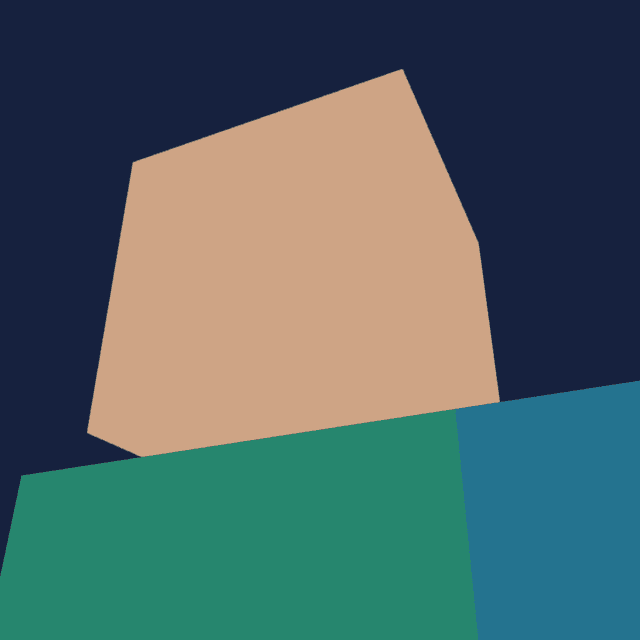
The examples below were exported from this tool using the color-coded Classic teaching template. One is a 512×512 full-body image with transparency; the other is a 1024×1024 portrait with a solid background. These are real exports of the same source texture, not finished character designs. Download the template and open it in the maker to try your own angle and pose.
If the preview is unavailable, check that the file is a readable 64×64 PNG and that your browser can display the 3D viewer. Allow the texture to finish loading before downloading. A profile picture cannot be imported as a skin texture: use the original 64×64 PNG for that purpose. To change the clothes or face, edit the source in the skin editor, export a skin PNG, and open that updated file here.
Both images use the same Classic teaching template.

No. It renders an avatar from an existing skin texture.
No. Pose affects the rendered avatar image, not the texture.
